症状
如果您在 SMB 连接中遇到文件传输速度慢,通过 AFP 的本地文件传输速度却正常,这可能是由于签名功能所致。启用 SMB 后 (默认情况下),您可能会遇到 SMB 性能缓慢的情况。
问题分析
启用 SMB 签名有什么影响?启用 SMB 签名后,SMB Direct 与网络适配器的网络性能会显著降低。
解决方案
要修复 SMB 文件传输问题,请执行以下步骤 :
- 使用 SMB 将 Mac 连接到 GS 系统 :
确保您的 Mac 通过 SMB 连接到 GS 系统。 - 在 Mac 上启动“Terminal (终端)”:
在有问题的 Mac 系统上启动“终端”应用程序。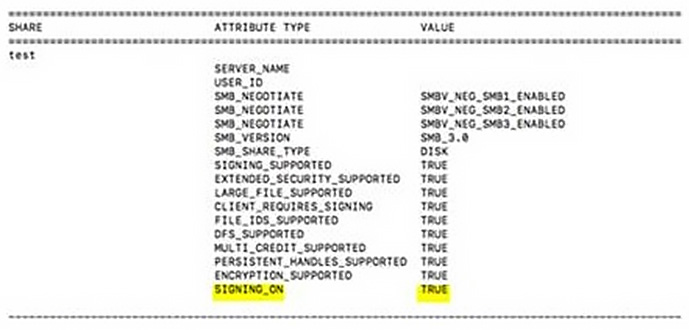
- 检查 SMB 签名状态 :
- 输入命令
smbutil statshares -a显示属性。 - 如果
SIGNING_ON显示为TRUE,请继续执行下一步以禁用此功能。
- 输入命令
- 禁用 SMB 签名 :
输入命令printf "[default]\nsigning_required=no\n" | sudo tee /etc/nsmb.conf > /dev/null以关闭SIGNING_ON。 - 确认 SMB 签名状态 :
输入命令smbutil statshares -a以确认SIGNING_ON不再显示。说明签名功能已关闭。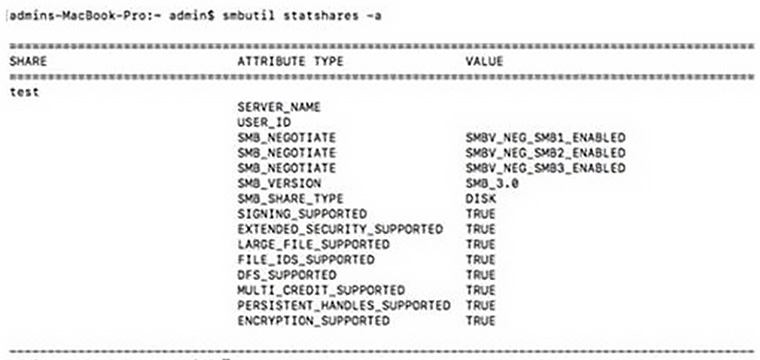
- 重新连接到 NAS 服务器 :
卸载 NAS 服务器并通过 Mac Finder 重新连接。 - 验证 SMB 文件传输性能 :
检查 SMB 文件传输性能是否有所提高。

